
Win786 Login: How to Log In, Reset Your Password, and Fix OTP Problems
Win786 uses your mobile number as your username. There is no email login, no social login, and no separate username system. Your phone number is your identity inside the app. This makes the login process simple, but it also means losing access to that number means losing access to your account.
This page covers every login scenario: first-time setup after downloading the APK, returning to the app after a break, resetting a forgotten password, fixing OTP delivery issues on Jazz, Telenor, Zong, and Ufone, and transferring your account to a new phone.
If you have not installed the app yet, start with the Win786 download page. If you want to know more, visit the Win786 Official.
How Win786 Login Works
Win786’s authentication system is straightforward:
| Element | How It Works |
|---|---|
| Username | Your Pakistani mobile number (03XX format) |
| Password | Set during first registration |
| Verification | OTP (one-time password) sent via SMS |
| Session | Stays logged in until you manually log out or clear app data |
| Two-Factor Auth | Not available (single-layer: password + OTP at registration) |
Once you log in, the app keeps your session active. You do not need to re-enter your password every time you open the app. The session only expires if you log out manually, uninstall the app, clear the app data from your phone settings, or install Win786 on a different device.
First-Time Login After Download
You just installed Win786 from the APK. Here is what happens when you open it for the first time:
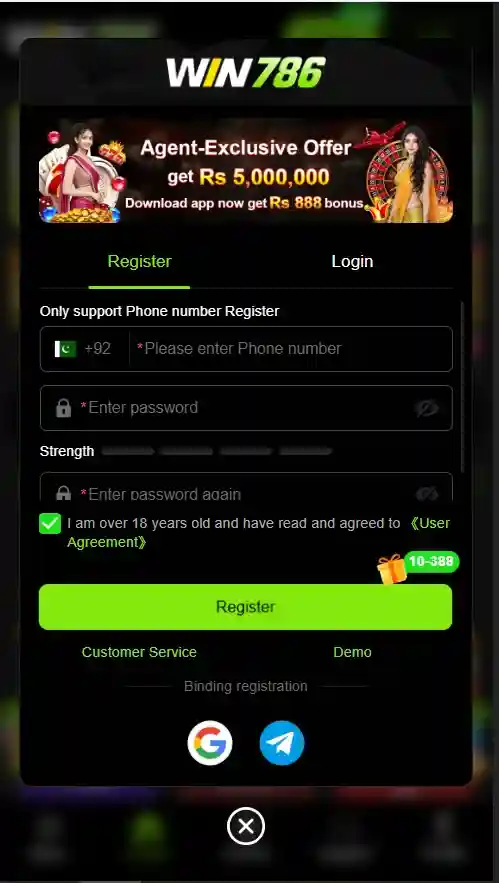
Step 1: Open the app. The welcome screen shows two options: Register and Login. Since this is your first time, tap Register.
Step 2: Enter your mobile number. Use the number you want permanently linked to this account. Use the 03XX format. This number receives your OTP and becomes your login identity.
Step 3: Receive and enter the OTP. W786 sends a 4 to 6 digit code to the number you entered. Enter it within 60 seconds. If the code does not arrive, see the OTP troubleshooting section below.
Step 4: Set your password. Choose a password you will remember. The game does not enforce strict password rules (no minimum length requirement shown in the app), but use at least 8 characters mixing letters and numbers. Do not use your JazzCash or Easypaisa PIN as your Win786 password.
Step 5: Enter a referral code (optional). If someone shared a referral code with you, enter it here. This gives you a small registration bonus (typically Rs. 50 to Rs. 100) and earns the referrer a commission. You can skip this step.
Step 6: Tap Register. You are now logged in. The app takes you directly to the main game lobby. Your session stays active until you log out.
The entire process takes under two minutes if the OTP arrives promptly.
Returning User Login
You already have an account and want to log back in. This applies when you reinstalled the app, got a new phone, cleared your app data, or were logged out for any reason.
Step 1: Open W786 and tap Login (not Register).
Step 2: Enter your registered mobile number in 03XX format.
Step 3: Enter your password.
Step 4: Tap Login.
No OTP is required for returning logins unless you are logging in from a new device. If Win 786 detects a device change, it may send an OTP to your registered number as a security check.
If you forgot your password, do not attempt multiple wrong passwords. After several failed attempts, Win 786 may temporarily lock your account. Use the password reset process instead.
Win786 Password Reset: Step by Step
Forgot your Win786 login password? Here is how to reset it:
Step 1: On the login screen, tap “Forgot Password” (located below the password field).
Step 2: Enter your registered mobile number.
Step 3: App sends an OTP to that number. Enter the code.
Step 4: Set a new password. Choose something different from your previous password.
Step 5: Tap Confirm. You can now log in with the new password.
The reset process takes about one minute if the OTP arrives on time. The old password stops working immediately after reset.
What if you do not see a “Forgot Password” option? Some older versions of Win 786 do not have a visible password reset button. In this case:
- Update the app by downloading the latest APK from w786.pk
- If still missing, contact W786 in-app support with your registered number and request a manual password reset
What if you no longer have access to the registered number? This is the most difficult scenario. Platform ties your account entirely to your mobile number. If you lost the SIM, the number was recycled, or the SIM is deactivated, your options are limited:
- Contact your mobile operator (Jazz, Telenor, Zong, or Ufone) to get a replacement SIM with the same number
- If the number cannot be recovered, contact Win 786 support with your account details (any deposit receipts, JazzCash/Easypaisa transaction IDs linked to the account) and request manual account recovery
- There is no guarantee of success. W786 does not have a formal account recovery process for lost numbers
OTP Not Received: Fixes by Network
This is the most common Win 786 login and registration problem. The OTP does not arrive. Here is a systematic fix list, organized by cause:
General fixes (try these first):
| Fix | What to Do |
|---|---|
| Wait 2 to 3 minutes | OTPs sometimes take up to 3 minutes during peak hours (8 PM to 11 PM) |
| Check the spam/blocked folder | Some phones auto-filter OTP messages into spam |
| Restart your phone | Refreshes the network connection and clears stuck SMS queues |
| Check signal strength | OTPs need active SMS service. No signal means no delivery |
| Free up SMS storage | If your inbox is full, new messages cannot arrive. Delete old messages |
| Tap “Resend OTP” | Wait at least 60 seconds before tapping resend. Do not spam the button |
Network-specific fixes:
Jazz / Mobilink: Jazz sometimes blocks automated SMS from certain short codes. If OTPs are not arriving on Jazz, try sending a blank SMS to any number to confirm your outgoing SMS works. If outgoing works but incoming OTPs fail, call Jazz helpline at 111 and ask them to check if automated or transactional SMS are blocked on your number.
Telenor: Telenor users with the “Do Not Disturb” (DND) service active will not receive OTP messages. Dial *345# to check and deactivate DND. After deactivating, wait 5 minutes and retry.
Zong: Zong prepaid users with expired SIM validity (balance expired but number still active) may not receive SMS. Recharge with any amount to reactivate full SMS service, then retry.
Ufone: Ufone users occasionally experience OTP delays of up to 10 minutes. If the code does not arrive within 10 minutes on Ufone, restart your phone and retry. If the issue persists, try using a different number for registration.
If nothing works: Try registering with a different SIM card. The accounts are tied to phone numbers, so any Pakistani number will work. Use a secondary SIM specifically for gaming apps to keep your primary number separate.
Common Login Errors and How to Fix Them
“Invalid Password” You are entering the wrong password. This does not mean your account is deleted. Use the Forgot Password option to reset it. Do not keep guessing. Multiple failed attempts can trigger a temporary lockout.
“Account Not Found” The number you entered does not have a account. This means either you registered with a different number, you never completed registration (closed the app before finishing), or the account was deleted. Try your other phone numbers. If none work, register a new account.
“Too Many Attempts, Try Again Later” You have been temporarily locked out after multiple failed login attempts. Wait 15 to 30 minutes before trying again. Do not reinstall the app to bypass this. The lock is server-side, not device-side.
“OTP Expired” You entered the OTP too late. Most OTPs expire after 60 to 120 seconds. Request a new one and enter it immediately when it arrives.
“Session Expired, Please Login Again” Your login session timed out. This happens after extended inactivity or a server update. Simply log in again with your number and password. Your balance and game history are not affected.
App shows a blank/white screen after login: This is not a login error. It is a loading issue, usually caused by slow internet or a full app cache. Clear the app cache (Settings > Apps > Win786 > Storage > Clear Cache) and reopen. Do not clear app data unless you want to be logged out.
“Network Error” or “Connection Failed” during login: Check your internet connection. Switch from mobile data to Wi-Fi or vice versa. If you are using a VPN, disable it. The casino sometimes blocks VPN connections.
Login on a New Phone (Account Transfer)
Moving to a new phone? Your Win 786 account is not stored on the device. It is stored on the servers and linked to your phone number.
To access your account on a new phone:
- Download the Win786 APK on your new phone from w786.pk
- Install and open the app
- Tap Login (not Register)
- Enter your registered mobile number and password
- You may receive an OTP for device verification. Enter it.
- Your full account loads: balance, game history, referral network, everything
Important: Logging in on a new device automatically logs you out of the old device. You cannot be logged into Win786 on two phones at the same time.
Do not register a new account on the new phone. If you register instead of logging in, you create a second account with zero balance. Your original account with your money is still tied to the same number. Just log in instead.
Multiple Accounts: What Happens
Win 786 allows one account per phone number. If you try to register a second account with the same number, the app either blocks the registration or overwrites the first account (behavior varies between app versions).
Some players use multiple SIM cards to create multiple accounts for referral bonuses. Win786’s terms of service (as stated inside the app) prohibit this. Whether enforcement actually happens is inconsistent: some users report operating multiple accounts without issues, while others report all linked accounts being suspended simultaneously.
The risk: if casino detects multiple accounts linked to the same device, the same JazzCash/Easypaisa number, or the same withdrawal destination, all accounts can be flagged. Withdrawal processing for flagged accounts is typically delayed or blocked.
Login Security: Protecting Your Account
Your Win786 account has money in it. Protecting your login credentials is protecting your balance.
Never share your password with anyone. No Win786 employee, support agent, or “VIP manager” needs your password. If someone asks for it, they are trying to steal your account.
Never share your OTP. The OTP is sent to your number for your use only. No legitimate process requires you to read your OTP to another person over the phone, on WhatsApp, or in any chat.
Use a unique password. Do not reuse your JazzCash PIN, Easypaisa PIN, or any banking password for Win786. If the database is compromised, a shared password would expose your financial accounts.
Lock the app on your phone. Use your phone’s app lock feature (fingerprint, PIN, or pattern) to prevent anyone with physical access to your phone from opening it without authentication.
Log out on shared devices. If you ever logged into Win 786 on someone else’s phone, log out when you are done. Go to Settings or Profile inside the app and tap Logout.
For a complete security checklist, see the Win786 safety guide.